
Fix "Failed to Verify Username" on Your Minecraft Server
Getting "Failed to verify username" on your Minecraft server? Why it happens, how to turn off online mode in one click, and how to keep your server secure.
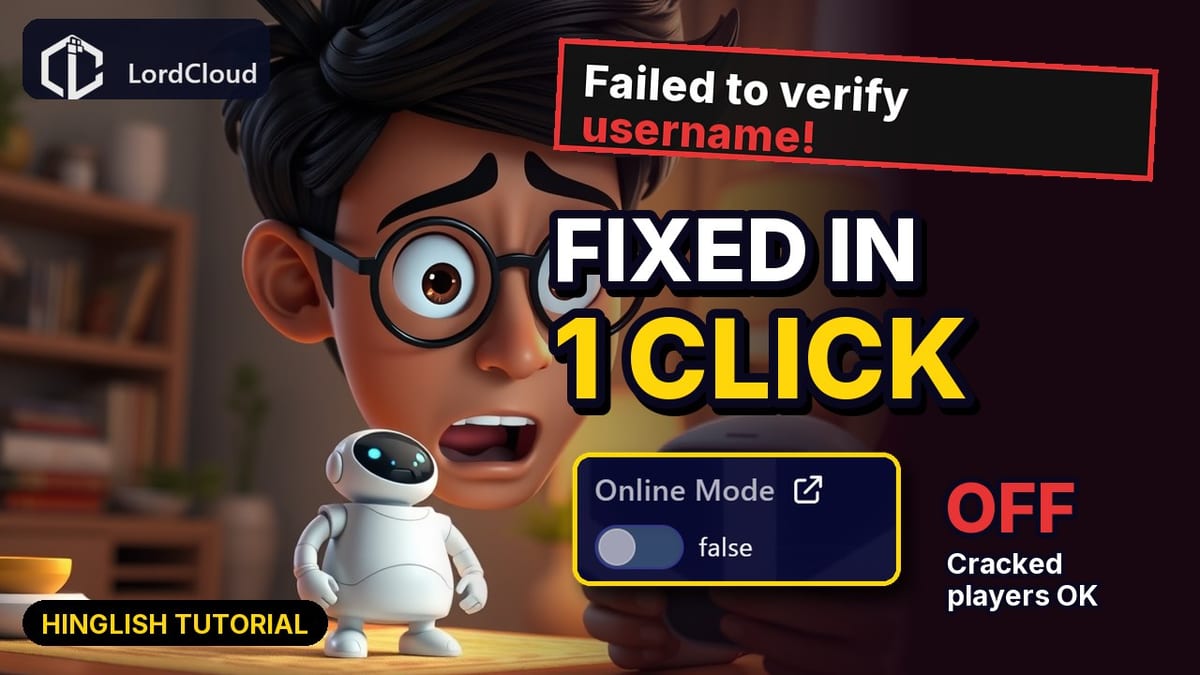
You try to join a Minecraft server and get kicked with "Failed to verify username!". Or you run a server and some of your friends can't join because they don't have an official Minecraft account. This guide explains why the error happens and how to fix it on a LordCloud server in one click, plus how to keep your server safe afterwards.
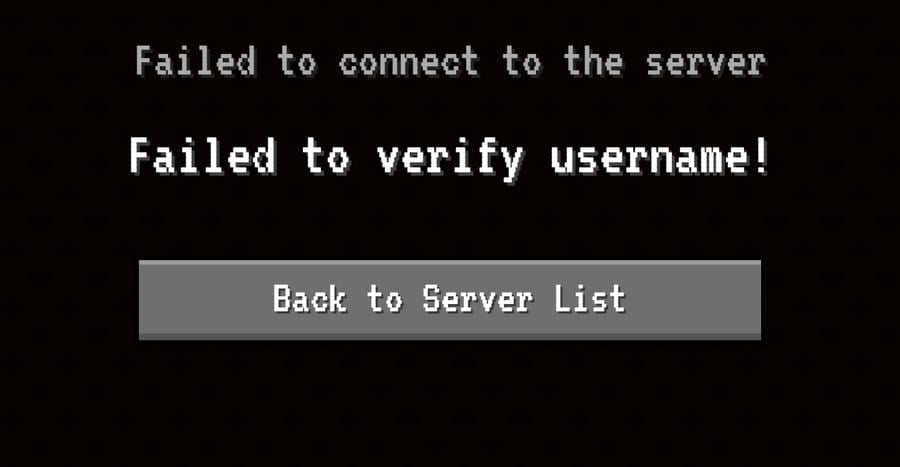
Why does "Failed to verify username" happen?
Minecraft Java servers run in online mode by default (online-mode=true). In online mode, the server checks every player's login with Mojang/Microsoft's authentication servers. If that check fails, the player sees "Failed to verify username!".
Common reasons:
- The player doesn't have an official Java account (for example, they use a "cracked" or offline launcher). This is the most common reason.
- The player's login session expired. Restarting the launcher and logging in again usually fixes this.
- Mojang/Microsoft authentication is temporarily down. Wait a little and try again.
If you are a player with an official account, try reason 2 first. If you are the server owner and you want players without official accounts to join, turn off online mode as shown below.
Method 1 (easiest): LordCloud panel → Properties
The LordCloud panel has a Properties page, so you don't need to edit any file.
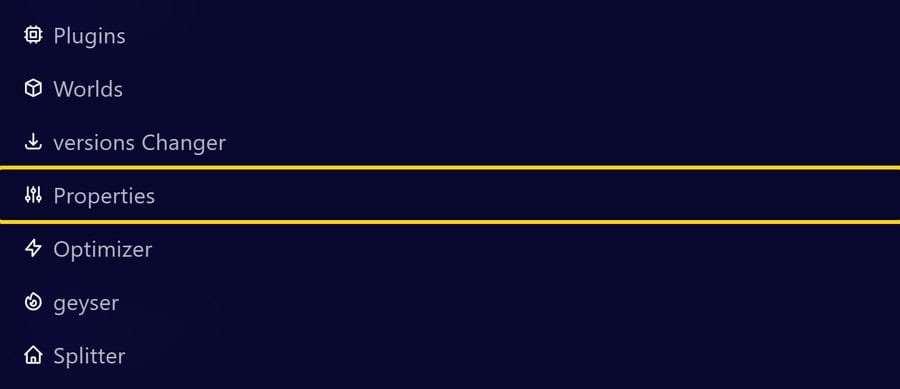
Step 1: Open Properties
Open your server in the LordCloud panel and click Properties in the menu.
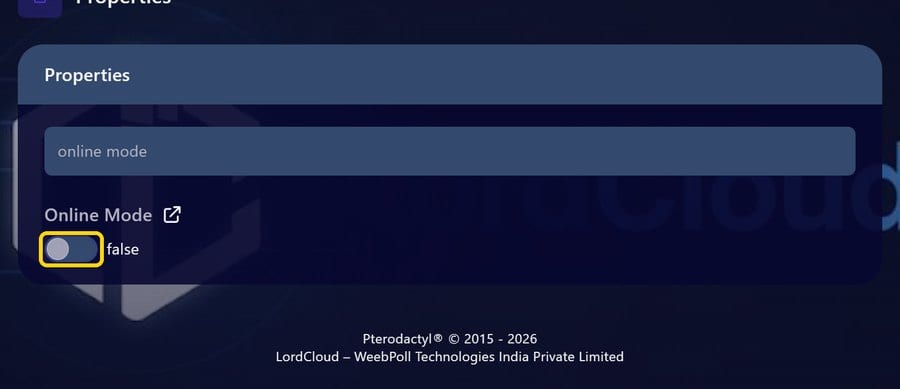
Step 2: Search for "online mode"
Type online mode in the search box. You will see the Online Mode switch, which is ON (true) by default.
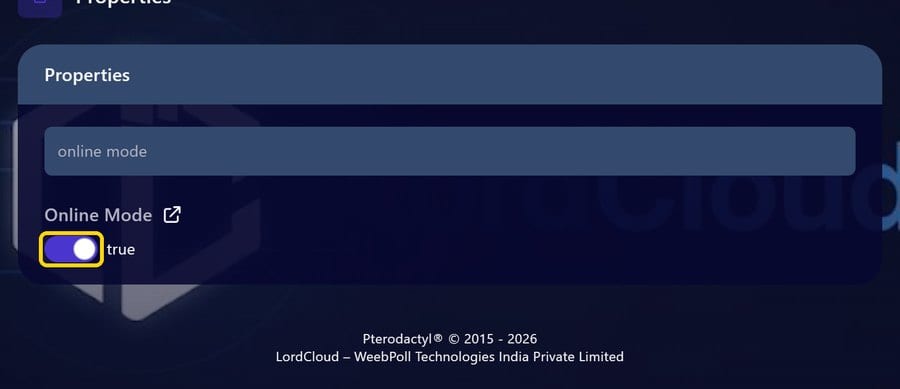
Step 3: Turn Online Mode OFF
Click the switch so it shows false. The panel saves the change to server.properties automatically.
Step 4: Restart the server
Go to the Console and click Restart. The new setting is applied on restart.
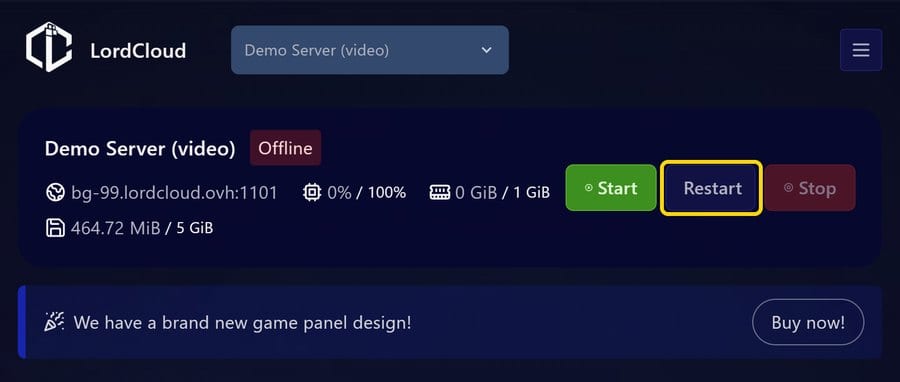
Players without official accounts can now join.
Method 2: Edit server.properties manually
If you prefer editing the file:
- Go to Files and open
server.properties - Find
online-mode=true - Change it to:
online-mode=false
- Click Save Content and restart the server.
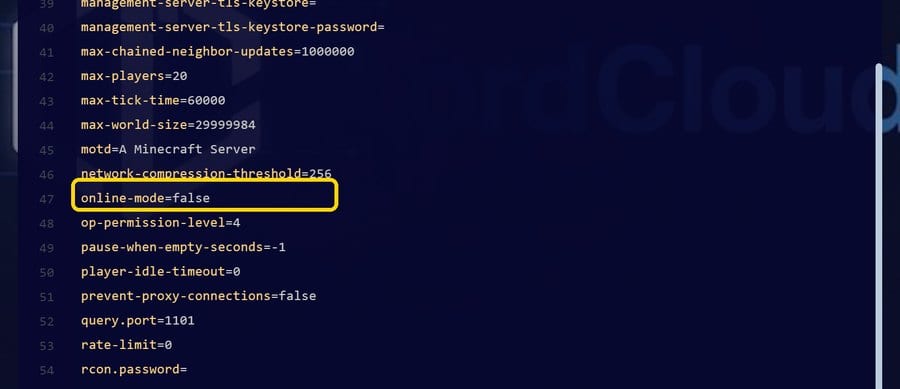
Both methods change the same setting. The Properties page is just quicker.
Important: offline mode security
When online mode is off, the server no longer checks who players really are. Paper even prints a warning in the console when it starts:
**** SERVER IS RUNNING IN OFFLINE/INSECURE MODE!
The server will make no attempt to authenticate usernames. Beware.
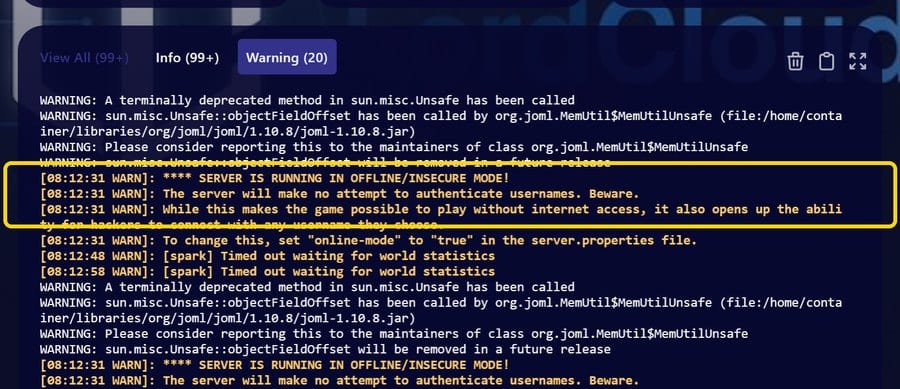
This means anyone can join using any username, including yours or your admins' names. To protect your server:
- Install a login/authentication plugin such as AuthMe Reloaded. Every player sets a password and must log in after joining.
- Never give OP or admin permissions by username alone. Use a permissions plugin and let staff log in first.
- Use a whitelist if your server is only for friends.
Using Geyser (Bedrock crossplay)?
If you only want Bedrock players to join without a Java account, you usually don't need offline mode. Use Floodgate with Geyser instead. See our guide: How to Set Up Geyser Crossplay on Your Minecraft Server How to Set Up Geyser Crossplay (Java + Bedrock).
Summary
- "Failed to verify username" means the server couldn't confirm the player's official Minecraft login.
- LordCloud panel: Properties → search "online mode" → switch OFF → Restart.
- Manual:
server.properties→online-mode=false→ save → restart. - Offline mode removes account checks. Always add a login plugin like AuthMe.
Looking for a Minecraft server with an easy panel? Check out LordCloud Minecraft Hosting.