How to Set Up Geyser Crossplay (Java + Bedrock)
Let Bedrock players join your Minecraft Java server. Set up Geyser + Floodgate with one setting: clone-remote-port: true. Step-by-step guide with screenshots.
Want your friends on mobile, console or Windows (Bedrock Edition) to join your Minecraft Java server? You don't need a second server. With two free plugins, Geyser and Floodgate, Bedrock players can join your Java server directly. On a LordCloud server, the whole setup takes a few minutes and only one config setting.
What you need
- A Minecraft Java server running Paper or Spigot (for example, a LordCloud Minecraft server)
- Access to your server panel (Files and Console)
- Two plugins from the official GeyserMC website: Geyser-Spigot and Floodgate
What do they do?
- Geyser translates between the Bedrock and Java versions of the game, so Bedrock clients can connect to a Java server.
- Floodgate lets Bedrock players join without owning a Java Edition account. They sign in with their Microsoft/Xbox account.
Step 1: Download Geyser and Floodgate
Open the official GeyserMC download page and download the Spigot/Paper version of both plugins:
- Geyser: https://geysermc.org/download/?project=geyser
- Floodgate: https://geysermc.org/download/?project=floodgate
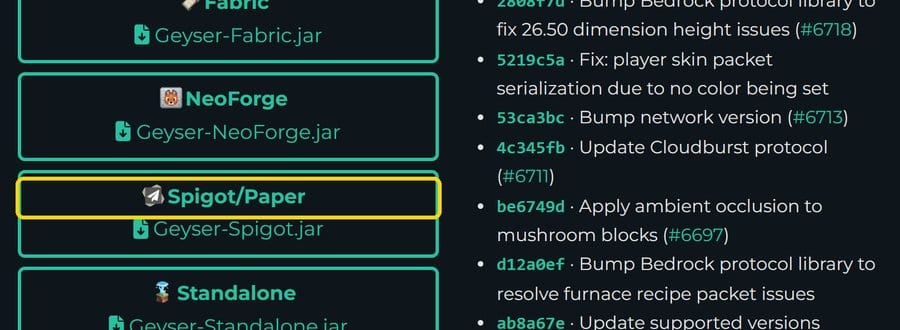
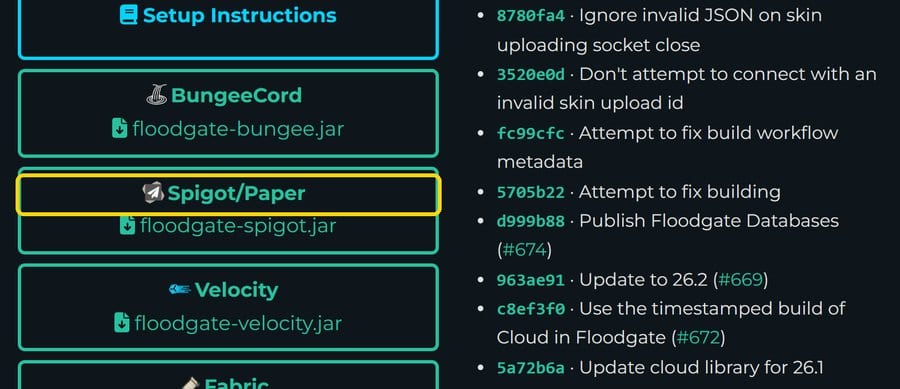
You will get two files: Geyser-Spigot.jar and floodgate-spigot.jar.
Step 2: Upload both files to the plugins folder
In your LordCloud panel, open your server, go to Files and open the plugins folder. Click Upload and upload both .jar files.
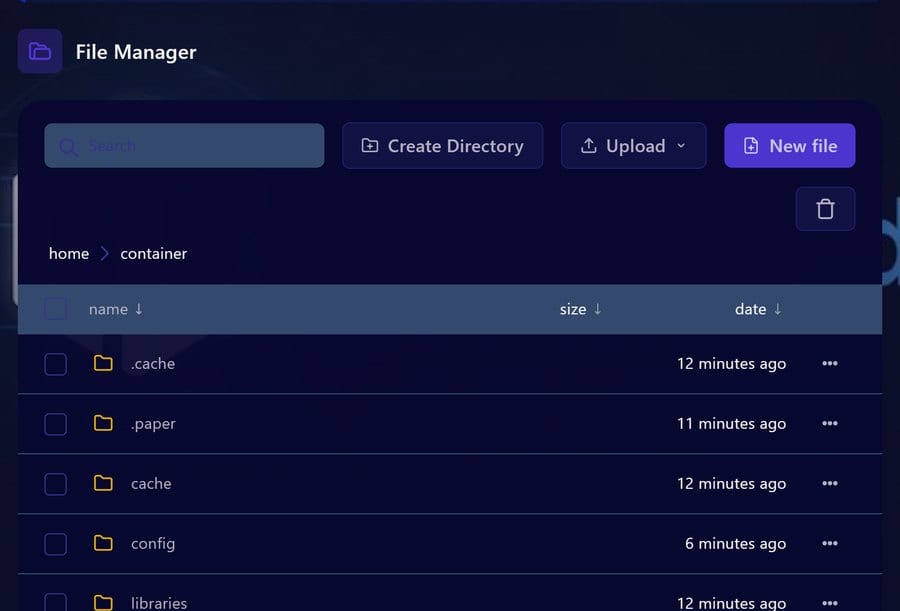
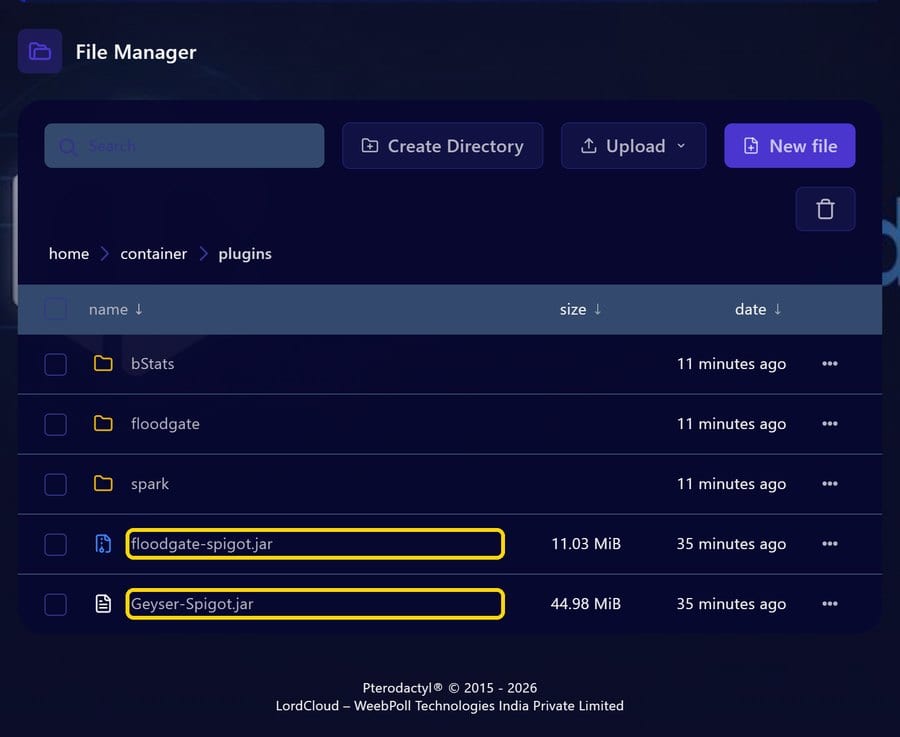
Tip: If you don't see a
pluginsfolder yet, start the server once. Paper creates it on first start.
Step 3: Start the server once
Start your server from the Console. On this first start, Geyser creates its configuration file at:
plugins/Geyser-Spigot/config.yml
By default, Geyser listens on the standard Bedrock port 19132. On most game hosts that port isn't assigned to your server, so Bedrock players can't reach it yet. That's what the next step fixes.
Step 4: Change one setting: clone-remote-port
Open Files → plugins → Geyser-Spigot → config.yml and find this line:
clone-remote-port: false
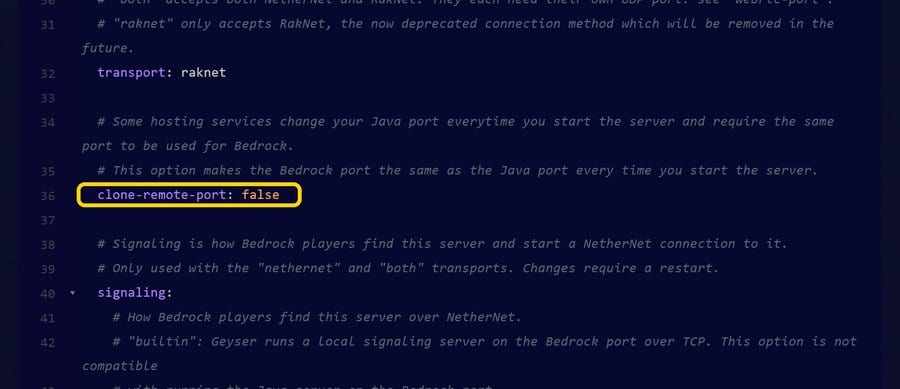
Change it to:
clone-remote-port: true
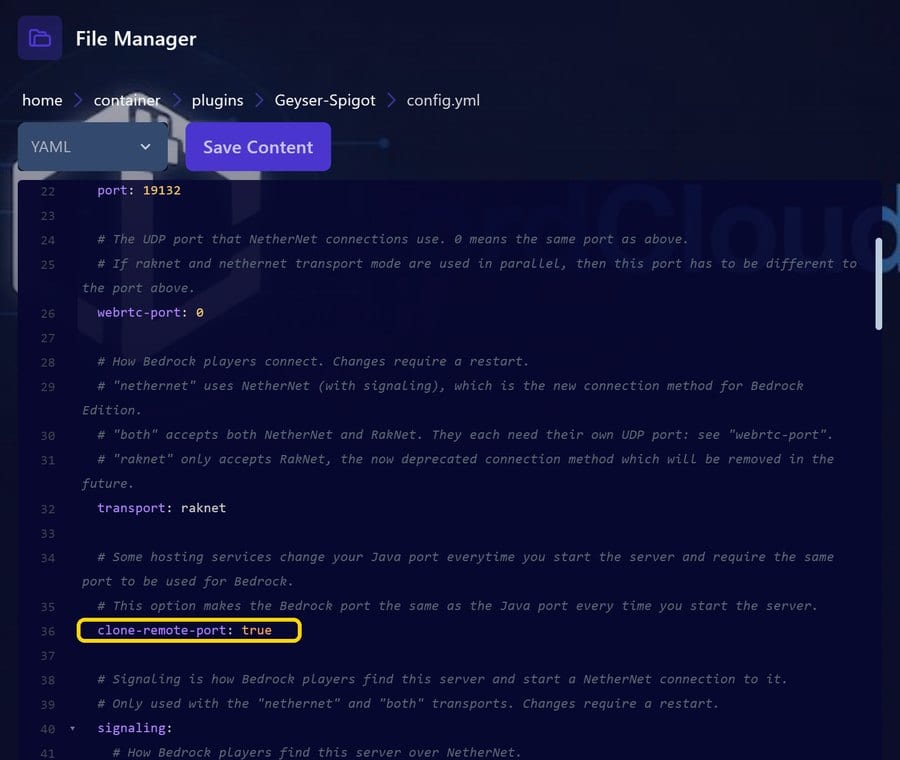
Click Save Content.
Why this works: clone-remote-port: true makes Geyser use the same port as your Java server every time the server starts. You don't need a second port or any extra allocation; Bedrock players use the same address and port as Java players.
Step 5: Restart and check the console
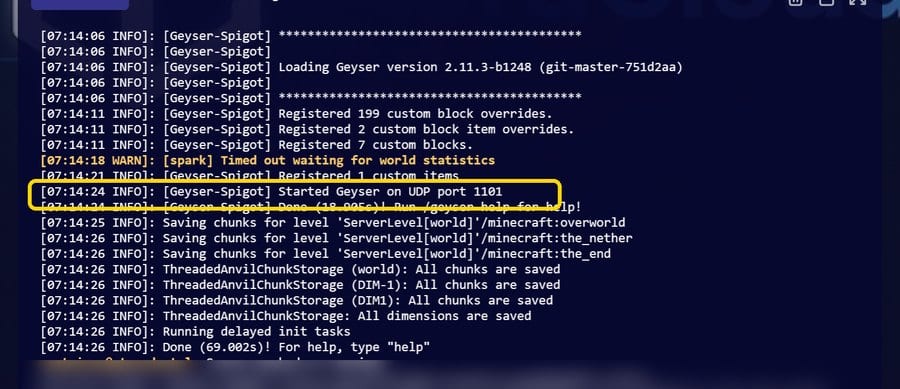
Restart the server. In the console you should now see a line like this:
[Geyser-Spigot] Started Geyser on UDP port 1101
The number is your server's port (1101 is our demo server). If it matches your Java port, Geyser is ready.
Step 6: Join from Bedrock
On Minecraft Bedrock Edition go to Play → Servers → Add Server and enter:
- Server Address: your server address (the same one Java players use)
- Port: your server port (the same port as Java)
Save, tap the server, and you're in. Java and Bedrock players can now play together.
Troubleshooting
Bedrock players can't connect Bedrock uses UDP. Make sure UDP traffic is allowed on your server port. LordCloud customers can ask support to check this.
Geyser shows an error or disables itself on startup Geyser has to support your server version. Brand-new beta Paper builds can break Geyser for a few days. Use the latest stable Paper version and the latest Geyser build.
The console still says port 19132 after restart
Check that you saved config.yml and that the line is exactly clone-remote-port: true (spaces and lowercase matter in YAML), then restart again.
Do Bedrock players need a Java account? No. That's what Floodgate is for. Bedrock players sign in with their Microsoft/Xbox account.
Summary
- Download Geyser-Spigot and Floodgate (Spigot/Paper) from geysermc.org
- Upload both to Files → plugins
- Start the server once
- In
plugins/Geyser-Spigot/config.yml, setclone-remote-port: true - Save and restart
- Bedrock players join with the same address and port
Need a Minecraft server that is ready for crossplay? Check out LordCloud Minecraft Hosting.